
Exploripo Guide
Email Automation: A Practical Guide to Planning and Testing Workflows
A practical framework for designing email automation workflows, testing every path with controlled contacts, and deciding when a workflow is safe to activate.
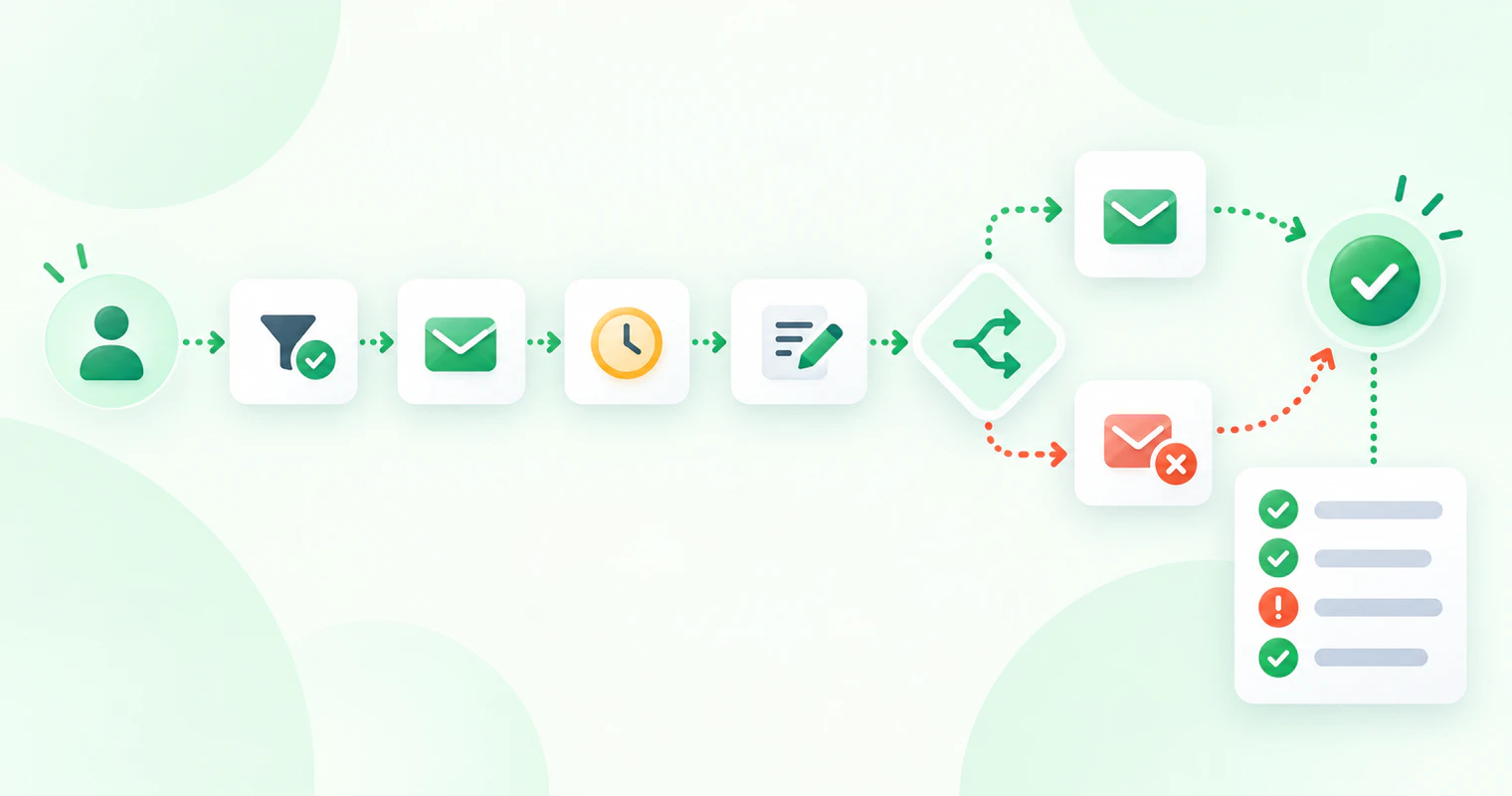
Email automation is useful only when the right contact enters, the intended actions happen, and the contact leaves or stops at the right time. A polished email does not compensate for an ambiguous trigger, a missing exclusion, or a workflow nobody can verify.
This Guide treats automation as a testable system. It starts with the job, maps entry and eligibility, records state changes, tests positive and negative paths, and checks the final state before activation.
Quick Answer: Build the Workflow Around a Job, Then Test Every Path
Email automation uses a defined event or state to start a sequence of actions without a person manually sending each message. It is more than scheduled email. A useful workflow connects:
entry → eligibility → action → timing → branch → exit → measurement
Start by writing one job in plain language: “When an eligible contact requests this resource, deliver it once, record the resulting state, and stop if the contact is no longer eligible.” Then translate that sentence into the exact trigger, data checks, actions, delays, branches, and exit rules your platform supports.
Before activation, run controlled contacts through every relevant path. Use a positive control that should progress and, where the workflow has an exclusion or condition, a negative control that should not. Test missing data, repeat entry, suppression, and the final state. A preview of one email checks content; it does not prove the workflow.
Activate only when the trigger is reproducible, expected state changes are visible, excluded records stay excluded, and you know where to investigate a failure.
What Email Automation Actually Includes
Platforms use different labels, but the following vendor-neutral model makes a workflow explainable:
| Element | Practical meaning | Question to answer |
|---|---|---|
| Trigger | The event that starts evaluation or entry | What exactly happened, and when? |
| Eligibility boundary | Rules that decide who may or may not enter | Which records are included, excluded, unsubscribed, or otherwise ineligible? |
| Condition | A test of contact data, activity, or state | What must be true at this point? |
| Action | A change performed by the system | Is an email sent, a tag changed, a field updated, or another sequence started? |
| Delay | A wait before the next evaluation or action | What starts and ends the wait? |
| Branch | Two or more possible paths | Which rule selects each path, and where do unmatched contacts go? |
| Exit | The point at which the contact stops progressing | What counts as completion, disqualification, or manual removal? |
| Workflow state/history | Evidence of entry, waiting, completion, failure, or removal | Where can an editor verify what happened? |
Terminology is not interchangeable. AWeber calls its entry step a Starter. Kit uses entry points, actions, events, and conditions in Visual Automations, while it also offers simpler if/then Automation Rules. MailerLite separates triggers from rules and actions. Beehiiv uses triggers, actions, delays, flow-control branches, and explicit exit nodes in its current documentation. Systeme.io distinguishes simple automation rules from a broader node-based workflow builder. Verify the labels and plan access in the account you will actually use.
Step 1: Define the Job Before Choosing the Trigger
Begin with the outcome for the recipient or the operational state—not with a template. “Nurture leads” is too vague. “Deliver the requested checklist to an eligible contact and mark the request as fulfilled” is testable.
Possible jobs include delivering requested content, starting onboarding after a confirmed action, changing an internal tag or field, or following up after a known state change. These are generic patterns, not a claim that Exploripo executed each one in all five products.
For the chosen job, record the owner, intended contact, required data, expected final state, and failure that would make the workflow unsafe. Define one primary outcome you can verify directly. “Tag added and contact stopped at exit” is observable. “Customer relationship improved” is not an execution test.
Keep adjacent work separate. If the trigger depends on a landing page, use the landing-page audit Guide to prove the page, form, confirmation, and subscriber creation. This Guide begins when that event is ready to feed a workflow.
Step 2: Define the Entry Trigger and Eligibility Rules
Write the entry rule so another editor can reproduce it. Name the exact event, asset, and timing: for example, “after submission of Form A while the workflow is active,” not merely “after signup.” Decide whether a submission, confirmation, tag change, purchase event, date, or manually controlled action is the true entry point.
Then define eligibility separately:
- Who may enter?
- Who must not enter?
- Does the required data exist before entry?
- Is the workflow limited to new events, or can existing records be added?
- May the same contact enter again? If so, after what new event or state change?
- What happens when the trigger fires while the workflow is inactive?
These details vary. Systeme.io and AWeber document non-retroactive behavior for certain entries. MailerLite documents configurable re-entry for some triggers. Beehiiv distinguishes triggers that enroll new subscribers from other routes. Do not copy one platform’s entry rule into another.
If tags, groups, or segments supply eligibility, validate their meaning and membership through the subscriber-tag audit Guide. Guide #12 owns audience membership, inclusion, exclusion, and recipient approval; this Guide uses the verified result as one workflow input.
Step 3: Map Actions, Data Changes and Side Effects
List every intended change, including changes that do not send an email. Depending on the platform and plan, an action might send a message, add or remove a tag, move a contact into a group or sequence, update a custom field, send an internal notification, call a webhook, or move the contact into another automation.
For each action, record the starting state, the expected result, and the evidence you will inspect. If an action adds a tag, verify the contact profile or tag count. If it enrolls a sequence, verify membership and the next queued step. If it updates a field, record the exact before and after values.
Also map side effects. A tag added by Workflow A may trigger Rule B, while starting another automation may leave the contact active in both. Systeme.io warns that adding a tag can activate connected rules; Kit documents actions that can start another automation while the contact remains in the current one. Review dependencies before changing live data.
Step 4: Add Delays and Branches Only When They Serve the Job
A delay should represent a real waiting requirement, not an arbitrary cadence copied from another campaign. Record whether it is a fixed duration, a specific date or time, or a wait for data or an event. Note the timezone and what happens if the relevant date has already passed.
A branch should answer a meaningful question: Did the contact reach the required state? Is a required field present? Does the contact meet the eligibility condition at this point? Define the positive, negative, and unmatched paths in advance.
Test how the platform evaluates the branch. MailerLite says conditions are checked immediately. Kit documents first-positive-match behavior and an “everyone else” path. Beehiiv documents multiple branch types with reconnection and exit behavior. These are product-specific mechanics.
Avoid a branch that exists only to vary minor wording. Every additional path expands the test matrix and future maintenance. If nobody can state why a branch exists and how to verify it, remove or redesign it before activation.
Step 5: Define Exit, Suppression and Duplicate-Entry Rules
Design the stop conditions before the first action. A contact may exit because the workflow completed successfully, the contact reached a disqualifying state, an owner removed the contact, a branch reached an exit node, or the platform stopped the path after a failed condition.
Treat unsubscribe or suppression as a boundary, not as another marketing label. Confirm what the platform exposes and do not edit those states merely to make a test pass. This operational check is not legal advice and does not establish compliance with any law.
Test duplicate and conflicting entry explicitly. Ask whether the same event can fire twice, whether re-entry is enabled, and whether a contact can belong to a conflicting workflow at the same time. Define an idempotent result where possible: repeating an event should not produce an unexplained duplicate message or contradictory state.
Do not assume a platform blocks every repeat. Systeme.io documents an activation limit for the same trigger/contact combination, which is not a one-time-send guarantee. MailerLite exposes re-entry settings for documented triggers. State the expected repeat behavior and its proof.
Step 6: Draw the Workflow Before Building It
You do not need specialist diagramming software. A table forces each transition to be explicit and provides the test script later.
| Step | Entry condition | Expected starting state | Action | Next state | Failure condition | Evidence to check |
|---|---|---|---|---|---|---|
| 1 | Controlled trigger occurs | Eligible; not previously completed | Add workflow test tag | Tagged | Trigger does not fire or wrong contact enters | Contact profile and activity |
| 2 | Tag exists | Required field present | Follow positive branch | In positive path | Field missing or wrong branch | Branch/path history |
| 3 | Wait requirement completes | Still eligible | Perform next bounded action | Action recorded | Unexpected timing or ineligible contact continues | Timestamp and action state |
| 4 | Job completed | Expected result visible | Exit | Completed | Contact remains queued or re-enters | Final state/history |
Replace the example values with the exact labels in your platform. Add rows for every negative path, suppression boundary, manual intervention, external dependency, and retry that matters.
Version the record with its name, owner, date, state, plan, trigger assets, controls, and change summary. A later investigation should distinguish a content edit from a logic change.
Step 7: Test the Path With Controlled Contacts
Use owned, approved test data and isolate the scope from real subscriber lists. Start with known states rather than whatever happens to be in the account.
The positive control should satisfy the trigger and eligibility rules. Record its state before entry, cause the exact entry event, and verify each change in sequence. Do not stop when an email preview looks correct. Check the contact profile, tag or group, sequence/workflow membership, activity timestamp, and final state that the job requires.
The negative control should fail one deliberate eligibility rule or enter the negative branch. Confirm that it does not perform the restricted action. If the negative record proceeds as though eligible, the workflow fails even if the positive path works.
A compact test matrix can look like this:
| Control | Starting state | Expected path | Required proof | Decision |
|---|---|---|---|---|
| Positive | Eligible, trigger absent | Enter, act, complete | Entry event, action state, exit | Pass only if all match |
| Excluded | Explicit exclusion present | No entry or early exit | No restricted action; visible exclusion/exit | Stop if it proceeds |
| Missing data | Required field empty | Fallback or safe stop | No broken personalization or wrong branch | Revise if ambiguous |
| Repeat entry | Prior completion recorded | Block, restart, or defined repeat | Exact documented re-entry result | Revise if unknown |
Use short delays only when the platform safely supports a test configuration and the shortened value does not alter production logic. Do not buy a plan, change DNS, or send to a real audience merely to complete a test. If the account cannot provide a safe negative control or full-history view, record that limit rather than inventing a pass.
Step 8: Test Every Branch and Failure Path
One successful contact proves only one route. Test each decision outcome independently. A two-way condition requires at least one record for the positive branch and one for the negative branch. A multi-path branch requires a known match for every material path plus the fallback.
Include these cases where they apply:
- positive branch;
- negative or excluded branch;
- blank or malformed required data;
- repeat trigger or re-entry;
- unsubscribe or suppression state;
- contact that reaches a delay but becomes ineligible before it ends;
- event received while the workflow is inactive;
- manual stop or documented exit;
- failed integration or missing external event.
Record both action and non-action. “No email received” is ambiguous: the contact might never have entered, might be waiting, suppressed, or failed. Inspect the state that explains the absence.
If a path cannot be tested safely, mark it not tested and decide whether that uncertainty blocks activation. A missing test is not automatically a product defect, but it must not be silently converted into confidence.
Step 9: Verify Logs, History and Final State
After each run, reconcile the workflow view with the contact record. Check entry time, current or final step, tags/groups, sequence membership, field values, completed actions, waiting actions, and exit reason where exposed.
Observability differs by product and plan. Systeme.io currently says rule and workflow execution history is retained for one month. Kit documents trigger history for recent Automation Rule runs, while its Visual Automation interface provides step-level subscriber views. Beehiiv documents journey states such as completed, in progress, exited, and removed on paid automation plans. MailerLite documents an Activity area with in-progress, failed, and canceled states for relevant cases. AWeber documents workflow statistics and subscriber tracking, but Exploripo did not test those surfaces hands-on.
Save the evidence needed to explain the result before limited history expires. A green status or aggregate count is not enough when the contact-level state contradicts it.
Step 10: Activate Gradually and Monitor the Workflow
Activation is a controlled release, not the end of testing. Begin with the narrowest eligible scope your platform and operating process allow. Confirm that the workflow is in the intended active state, then inspect the earliest real entries and compare them with the approved map.
Watch for missing entries, unexpected contacts, stalled waits, repeat entry, failed actions, and wrong exits. Log the owner, reason, and changed steps, then re-run affected paths after every material logic or data-source change.
Do not treat open or click rates as proof that workflow logic is correct. They can be useful diagnostic signals, but this Guide does not establish performance benchmarks or deliverability. When a workflow will send email, hand the validated logic to the email deliverability test Guide for authentication, inbox placement, links, and reporting.
Three Example Automation Patterns
The following patterns are planning examples. They are not evidence that Exploripo executed each pattern in Systeme.io, AWeber, Beehiiv, Kit, or MailerLite.
1. Requested-resource delivery
- Trigger: a verified resource-request event.
- Eligibility: contact is in the approved state and has not completed this resource version.
- Actions: record the request; deliver or enroll the bounded resource step where supported.
- Possible branch: required address or resource identifier present versus missing.
- Exit: delivery state recorded, or safe stop when required data is missing.
- Test: one eligible record, one excluded or already-completed record, and one missing-data record. Verify the final contact state rather than only the message preview.
Guide #11 owns the page, form, confirmation, and initial subscriber path. This pattern begins with the verified event from that workflow.
2. Simple onboarding or nurture workflow
- Trigger: confirmed account, subscription, tag, or other defined entry event.
- Eligibility: correct product or audience state; conflicting or suppressed records excluded.
- Actions: add a state marker, enroll a bounded sequence, or perform another documented onboarding action.
- Possible branch: setup completed versus still incomplete when evaluated.
- Exit: completion state reached, disqualifying state appears, or sequence ends.
- Test: positive and incomplete controls, early completion during a delay, repeat entry, and final membership.
No universal delay is recommended. Choose timing from the operational job and test how the platform applies changes to contacts already waiting.
3. Behavioral or state-driven follow-up
- Trigger: a documented event or data change.
- Eligibility: the event is attributable, required fields exist, and the contact remains eligible.
- Actions: update a field or tag, notify an internal owner, or route to another bounded state where supported.
- Possible branch: state reached versus not reached; include a fallback for unmatched data.
- Exit: target state, manual removal, or explicit stop after the negative path.
- Test: one record per branch, a duplicate event, a missing event, and a conflict with another workflow.
Do not assume that behavior-based triggers are identical across tools or that an observed open or click represents the underlying business outcome.
What Exploripo Observed
The hands-on evidence is deliberately asymmetric. The dates below describe historical tests, not a fresh October 2026 account retest.
Systeme.io — hands-on automation executed. On August 27, 2026, Exploripo built a live opt-in funnel, submitted an owned address, reached the thank-you page, and confirmed creation of one CRM contact. We then created exploripo-funnel-lead, configured Funnel step form subscribed → Add a tag, saved the active rule, and resubmitted the form. The tag counters changed from zero to Today 1 / Total 1. This proves that one narrow no-email trigger/action path completed in that account. It does not prove branches, delays, suppression, duplicate handling, broader workflows, long-term logs, or email delivery. A campaign attempt stopped at the missing authenticated-domain boundary, and no marketing email was sent. See the Systeme.io review.
AWeber — adjacent hands-on evidence; Workflows not tested. On August 28, 2026, Exploripo published one landing page, completed double opt-in with one owned subscriber, verified the contact as Subscribed with source Web Form, and saved a tag and note. We also completed one controlled broadcast and checked its one-recipient reporting. We did not build or execute an AWeber Workflow. Current vendor documentation—not our hands-on test—describes Starters, messages, waits, tag actions, feed checks, split paths, publishing, status, and workflow statistics. See the AWeber review.
Beehiiv — builder observed; execution not tested. On August 31, 2026, Exploripo used a Launch account with temporary Max-feature access. The Automations area stated that publishing and activation required Scale or Max at that time. We opened a Manual-trigger canvas and observed branch points, continuation points, Exit, and actions including Send email, Update subscription, Send webhook, and Wait until. We added no action, inserted no subscriber, and did not publish, activate, trigger, or measure an automation. Beehiiv’s current October documentation now describes automations on paid plans using different plan names, as well as branches, exit nodes, activity, and journey analytics. Those current mechanics are vendor-documented only, and the plan change requires review refresh. See the Beehiiv review.
Kit — acquisition tested; advanced automation not tested. Exploripo’s August 26, 2026 test verified onboarding, a published landing page, live form submission, double opt-in, and a confirmed subscriber. We did not test advanced Visual Automations, conditions, delays, exits, or automation history. Current Kit documentation describes entry points, actions, events, conditions, sequences, status, and if/then Automation Rules; those details are documentation-only in this Guide. See the Kit review.
MailerLite — campaign tested; automation template only observed. On August 27, 2026, Exploripo created one group with one owned subscriber, built and sent one controlled campaign, and checked reporting and an export. In Automation discovery, we observed templates and a simple welcome preview with Joins group(s) followed by one email. We did not activate or execute a live automation. Current documentation describes triggers, re-entry settings, delays, conditions, actions, activity states, and full-workflow testing; those mechanics were not reproduced in our account. See the MailerLite review.
A fresh Systeme.io retest was attempted on October 11, 2026, but the account required authentication. At the owner’s request, Exploripo continued without login. No credentials were entered, no account state changed, and no new workflow or send occurred.
What to Look For in Email Automation Software
Choose from your workflow record, not from the length of a feature list. Bring one representative job and ask the vendor or trial account to prove each requirement.
| Requirement | What to verify | Why it matters |
|---|---|---|
| Triggers | Exact events, filters, retroactivity, multiple-entry behavior | A broad “signup” label can hide different entry states |
| Conditions and branches | Supported data, evaluation timing, fallback path, reconnection | A branch must route every intended state safely |
| Delays | Units, dates, timezones, edits to waiting contacts | Timing changes can affect active participants differently |
| Actions | Email, tag/group, field, sequence, notification, webhook, movement | The platform must perform and expose the required state change |
| Re-entry and exclusions | Duplicate controls, repeat interval, suppression behavior | Repeat events must not create unintended outcomes |
| Testing | Message preview versus complete workflow test | Copy QA does not validate entry, logic, or exit |
| Logs and history | Contact-level timestamps, waiting/failure/exit state, retention | You need evidence when a contact takes the wrong path |
| Reporting | Step-level operational state and bounded email metrics | Aggregate engagement cannot replace workflow diagnostics |
| Plan limits | Active workflows, advanced branches, actions, contacts, history | Builder visibility may not mean activation is included |
| Maintainability | Naming, notes, pause behavior, ownership, change history | A future editor must be able to explain and stop the workflow |
Official documentation shows meaningful differences. Systeme.io documents rules and broader workflows; Exploripo executed one rule. AWeber documents Workflows, but we did not execute them. Beehiiv documents branching, exits, and analytics on paid plans; our test stopped at the activation gate. Kit documents Visual Automations and simpler Rules; our test ended at subscriber confirmation. MailerLite documents full-workflow testing; we observed only a template.
Plan names, allowances, and interfaces can change. Build the representative workflow during a trial or approved test window where possible, and verify activation—not just builder access. Use the product reviews linked above for the broader verdicts; this Guide does not rank the five tools or declare a universal winner. Browse the Marketing & Email category when the task is product discovery rather than workflow validation.
Final Pass / Revise / Stop Checklist
Pass only when the job is clear; the trigger is reproducible; eligibility is explicit; the positive path passes; the negative or excluded path behaves correctly where applicable; every material branch has been tested; expected actions and final state are visible; and suppression, exit, and repeat-entry behavior are understood.
Revise when the trigger is ambiguous, required state or data is missing, a branch lacks a known control, timing differs from the map, a duplicate or re-entry result is uncertain, or logs cannot explain the final state. Correct the workflow record and configuration, then repeat the affected paths.
Stop when the wrong contact enters, an excluded contact proceeds, the workflow cannot be explained from entry to exit, a loop or repeated entry occurs unexpectedly, the expected outcome cannot be verified, or a suppression boundary appears bypassed. Do not use a successful message preview, aggregate count, or engagement metric to waive a failed control.
The release decision establishes only whether the observed workflow logic matches its documented job. It does not establish conversion uplift, open-rate or click-rate improvement, revenue improvement, a universal ideal delay, universal reliability, identical cross-platform behavior, deliverability, or legal compliance.
What to Check Next
If the entry event begins on a page or form, use Guide #11’s landing-page audit. If tags, groups, or segments determine eligibility, use Guide #12’s subscriber-tag audit. Once workflow logic passes and email will be sent, continue with Guide #5’s deliverability test.
For product-level context, read the Systeme.io, AWeber, Beehiiv, Kit, and MailerLite reviews linked in the evidence section. For broader product discovery, browse Marketing & Email. The reviews answer whether a tool fits; this Guide answers whether a specific automation can be explained, tested, activated, monitored, and stopped safely.