
Exploripo Guide
Password Manager vs Browser Vault: Which Should You Use?
Browser vaults are no longer a weak default, but they do not fit every mix of devices, browsers, passkeys, and shared accounts. Use this guide to decide whether to stay, switch, or run a migration test first.
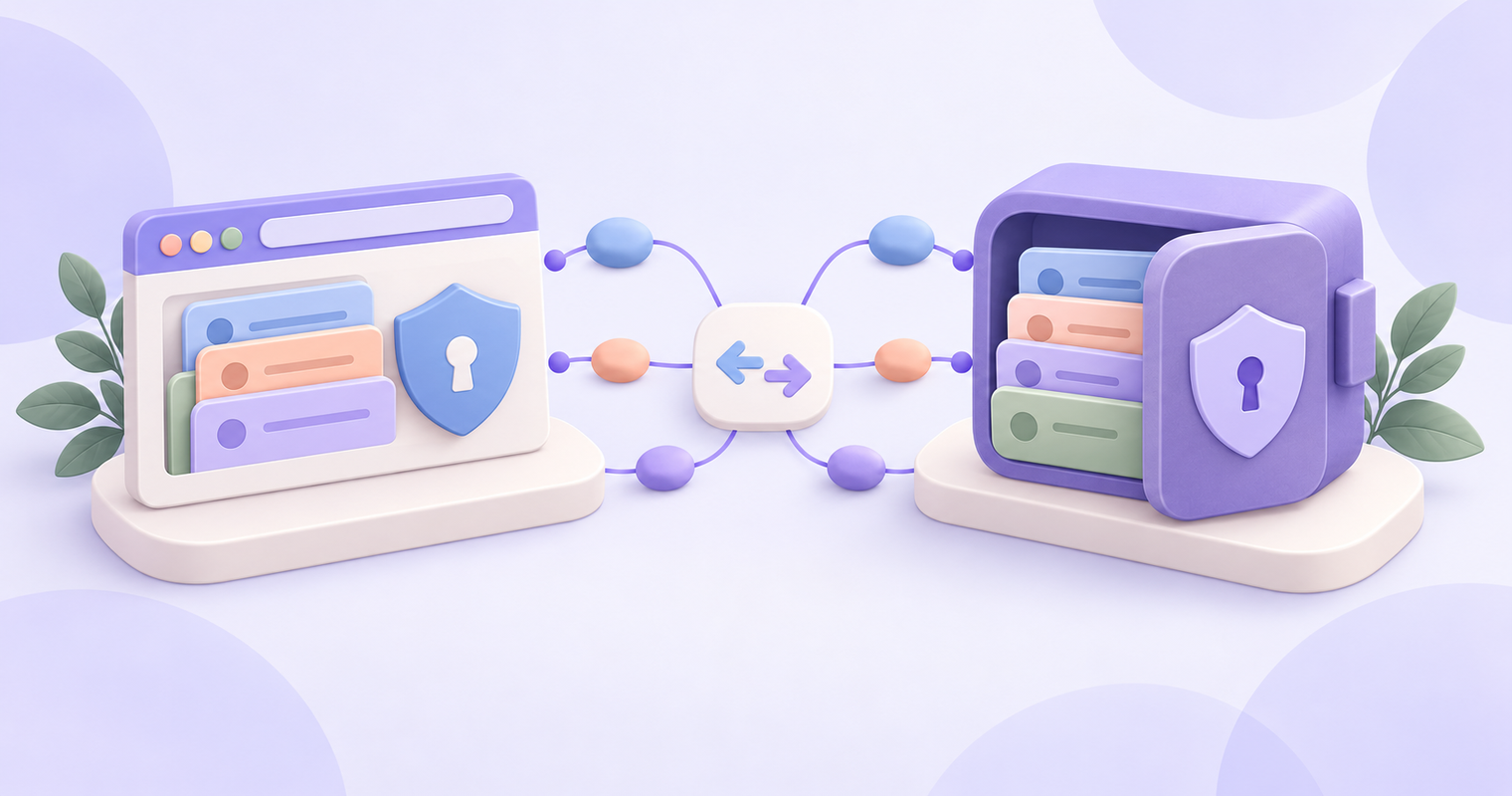
Choosing between a dedicated password manager and the vault built into your browser is no longer a simple contest between a “secure app” and an unsafe browser. Chrome, Edge, Firefox, and Apple’s Passwords app can all generate, save, and fill strong passwords. Some also sync passkeys, warn about compromised credentials, or support limited sharing.
The real question is whether your current vault fits the way you use devices, browsers, shared accounts, passkeys, and recovery options.
The short answer:
- Stay with your browser or platform vault if you use one main ecosystem and it already helps you use unique credentials reliably.
- Switch to a dedicated password manager if you regularly cross platforms, need better organization or sharing, or want your vault to be independent of one browser account.
- Test first if your vault contains passkeys, verification codes, shared credentials, managed work accounts, or multiple browser profiles.
Whichever option you choose, a reputable password manager is normally safer than reusing passwords, keeping them in an unprotected document, or relying on memory.
What counts as a browser vault?
A browser vault is the password manager built into a browser or closely connected platform account.
Google Password Manager saves passwords and passkeys to a Google Account and can make them available in Chrome, Android, and other signed-in devices. Microsoft Password Manager stores credentials through Edge and a personal Microsoft account. Firefox can sync saved passwords between devices running Firefox.
Apple blurs the category. Its Passwords app is a platform-level manager rather than just a Safari feature. It synchronizes through iCloud Keychain and can store passwords, passkeys, and verification codes. On Windows, the iCloud Passwords extension can provide access in Chrome, Edge, and Firefox.
That means “browser vault” is useful shorthand, but the products are not identical. Before comparing them with a dedicated manager, check the actual reach of the one you use.
What changes with a dedicated password manager?
A dedicated password manager is a separate service with its own account, apps, browser extensions, and recovery model. Products such as 1Password are designed to work across multiple browsers and operating systems rather than treating one browser as the center of the system.
Depending on the product and plan, a dedicated manager may also provide:
- separate vaults and richer organization;
- secure notes, identity records, cards, and custom fields;
- family or team sharing;
- password-health and breach-monitoring tools;
- built-in one-time password generation;
- administrative controls and account recovery;
- more consistent behavior across browsers and native apps.
Those capabilities come with tradeoffs. You may need to pay a subscription, learn a new recovery process, install extensions, and resolve conflicts with the password manager already built into your browser.
Is a dedicated password manager safer?
Not automatically.
Both first-party vaults and reputable dedicated managers can use encryption, operating-system security, biometrics, and account protections. Browser and device makers benefit from deep platform integration. Established dedicated managers focus more narrowly on protecting and managing credentials.
In either case, security depends on more than the vault’s brand:
- Are your passwords unique?
- Is the device updated and protected by a strong screen lock?
- Is multifactor authentication enabled on the account controlling the vault?
- Can another person access an unlocked computer?
- Do you understand the recovery process?
- Will you notice and replace compromised credentials?
A dedicated manager can offer better monitoring and stronger separation from your browser account, but it also becomes a high-value account that needs careful protection. A browser vault can be a sound choice when its account, devices, and recovery options are secured properly.
Passkeys improve the picture because they are resistant to ordinary phishing and cannot be reused like passwords. However, storing a passkey and moving it to another provider are separate questions. Never assume that a password CSV also contains your passkeys.
The STAY, SWITCH, OR TEST FIRST framework
STAY with your browser vault when simplicity is working
Staying is reasonable when:
- you primarily use one browser or platform;
- your passwords and passkeys appear on every device where you need them;
- you do not need complex family, team, or client sharing;
- the vault generates unique passwords and alerts you to obvious problems;
- you have secured the controlling Google, Microsoft, Mozilla, or Apple account;
- you understand how to recover access after losing a device.
A person who uses Chrome on a personal computer and Android phone may gain little from adding another layer. The same can be true for someone using Apple devices and the Passwords app throughout the household.
Do not switch merely because a vendor article says every browser manager is inadequate. Switch when you can name a problem the new tool will solve.
SWITCH when your digital life no longer fits one ecosystem
A dedicated manager becomes more valuable when:
- you move regularly between Windows, macOS, Linux, Android, and iOS;
- you use several browsers instead of one synchronized browser;
- work and personal credentials are mixed across multiple profiles;
- you need structured family or team vaults;
- you store recovery codes, secure notes, software licenses, or other sensitive records;
- you want one consistent place for passwords, passkeys, and supported verification codes;
- you need stronger credential-health reporting or administrative recovery.
The benefit is not simply “more security.” It is having one deliberate credential system instead of several partial systems.
TEST FIRST when migration could create lockouts
Run a pilot before committing when you have:
- passkeys;
- time-based one-time password codes;
- shared password groups;
- managed work or school profiles;
- several Google, Microsoft, Mozilla, or Apple accounts;
- an Apple-and-Windows or other mixed-device setup;
- important accounts with unusual login forms;
- a family or team recovery process.
These cases do not prevent migration. They mean that “export, import, delete the old vault” is not a safe plan.
Decision matrix
| Your situation | Browser or platform vault | Dedicated password manager |
|---|---|---|
| One browser and one ecosystem | Usually the simplest choice | May add unnecessary work |
| Several browsers or operating systems | Coverage may be uneven | Usually more consistent |
| Basic password generation and autofill | Commonly included | Included |
| Passkeys | Supported by some providers; transfer varies | Supported by some products; transfer still varies |
| Family sharing | Available in some ecosystems with restrictions | Often more structured |
| Team administration | Usually limited | Common on business plans |
| Secure notes and custom records | Limited or product-specific | Usually stronger |
| Breach and password-health tools | Varies by provider | Often more detailed |
| Recovery | Tied to the platform account | Product-specific codes, kits, or organizer recovery |
| Cost | Commonly included with the platform | May require a subscription |
| Switching away later | Password export is common; other data may not follow | Export quality and formats vary |
How to switch without locking yourself out
1. Map the vaults you already have
List every place where credentials may be stored:
- browser profiles;
- personal and work accounts;
- phones and tablets;
- Apple Passwords or iCloud Keychain;
- old password-manager apps;
- authentication apps;
- shared family or team vaults.
Check whether the same login exists in more than one place. Do not start by deleting duplicates. First establish which copy is current.
2. Prepare the destination and its recovery path
Create a strong, unique primary password if the destination requires one. Enable its recommended multifactor authentication and save any recovery code, Emergency Kit, or equivalent instructions somewhere you can access without opening the vault itself.
If family or team recovery is available, confirm who can initiate it. Test signing in on a second device before moving critical credentials.
Keep the original vault, its account-recovery options, and any existing recovery codes intact throughout the migration.
3. Run a synthetic pilot before moving real credentials
Do not begin with your real email, financial, cloud-storage, or identity accounts.
Start by creating synthetic credential records or a dedicated non-sensitive test account that you control. Use them to validate the entire process without exposing a real password or risking a meaningful lockout.
Test whether the destination can:
- import the record correctly;
- fill it in your intended browsers and devices;
- distinguish between multiple logins for one site;
- save an updated password;
- lock and unlock using your chosen method;
- remain accessible through its documented recovery process.
If the migration uses a direct transfer between apps, test that route with the synthetic records first. If it requires an export file, inspect which fields arrived without using real secrets.
Only after the synthetic pilot succeeds should you consider migrating a limited set of low-risk real credentials. Validate those before moving critical accounts.
This is a recommended testing method, not a claim that Exploripo performed a hands-on migration between the products covered here.
4. Prefer direct transfer and treat exports as exposed secrets
Where both products document a direct-transfer method, prefer it over creating an intermediate export file. Current mobile credential-exchange methods can move supported data directly between compatible apps and avoid leaving an ordinary password CSV behind.
When direct transfer is unavailable, password CSV files and certain other export formats may contain readable secrets. They may include passwords, usernames, one-time-password seeds, notes, or other sensitive fields depending on the product and format.
Create an export only when you are ready to import it. Do not send it by email or place it in an ordinary cloud folder, shared drive, messaging app, or other shared location. Avoid using a synchronized folder if a local, non-synchronized location is available.
After the import, consider where residual copies may remain:
- the Downloads folder;
- the operating system’s Trash or Recycle Bin;
- a synchronized folder on another device;
- cloud version history;
- automated device backups;
- temporary or duplicate copies created during the transfer.
Remove temporary exports after you have validated the import, but do not claim that ordinary file deletion guarantees irreversible forensic erasure. If secure disposal is required by an employer, regulation, or threat model, follow the approved process for that device and organization.
Deleting the temporary export is not the same as deleting the original vault. Preserve the original vault and its recovery mechanisms during the verification window so they remain available for rollback.
5. Migrate special credentials separately
Do not assume the password import handled everything.
Passkeys: Check the current instructions for both providers and the exact devices involved. Some products support direct Credential Exchange on selected mobile systems, while desktop exports may still omit passkeys.
At the time of this guide’s final verification, 1Password documented Credential Exchange import and export on iOS or iPadOS 26 and later and on Android 14 and later when the other app also supports the standard. Its desktop export still does not include passkeys. If a direct transfer is unavailable, add a new passkey at the website, verify it, and only then remove the old one.
Verification codes: Find every account where the old vault generates a six-digit code. Confirm that the secret transferred correctly or enroll the destination as a new authenticator. Preserve the website’s recovery codes until the new code has been tested.
Shared items: Recreate the intended owner, group, and access rights. A flat import may preserve the credential without preserving the sharing relationship.
Recovery information: Make sure backup codes, recovery contacts, and organizer permissions still make sense after the move.
6. Avoid running two active capture systems indefinitely
During the pilot, keeping the old vault available is useful. Keeping both managers actively offering to save and update every password is not.
Once the destination is validated, make it the default and disable saving or autofill prompts in the old manager. This reduces duplicate records and the risk of updating the wrong copy.
Leave the original data available in a read-only role for a short verification period. Do not continue editing both vaults.
7. Keep a rollback plan
Before decommissioning the old manager, verify a representative set of important accounts, including email, financial services, cloud storage, shopping, and any account used for recovery.
If the new manager fails:
- stop making changes in both vaults;
- re-enable the original manager if necessary;
- identify whether the failure affects the import, autofill, passkey, or verification code;
- correct and retest with synthetic records or a small low-risk sample before repeating a larger migration.
Never delete the original vault just to make the migration feel complete.
Where 1Password fits
If the framework points toward a dedicated manager, 1Password is a relevant candidate for people who need multiple browsers, several platforms, structured sharing, Watchtower alerts, or support for more than ordinary login records.
Read our full 1Password review for its strengths, tradeoffs, and the exact limits of our hands-on test. Exploripo directly checked the web vault, Watchtower, and one-time item sharing. Browser autofill and passkey migration were not part of that practical test, so the corresponding details in this guide come from current official documentation.
If monitoring is your main reason to switch, see how to use 1Password Watchtower for password breach monitoring. If you only need to send one credential safely, use the narrower guide to share a password securely with an expiring one-time link before moving your entire vault.
Frequently asked questions
Is a browser password manager safe enough?
For many people, yes. A reputable, updated browser or platform vault protected by a secure account and device is substantially better than reused passwords or an unprotected password document. Its suitability decreases when your devices, browsers, or sharing needs extend beyond its ecosystem.
Do I need a dedicated password manager if I use Chrome?
Not necessarily. Google Password Manager can generate, store, synchronize, and fill passwords and passkeys across supported signed-in devices. Consider switching only if you need better cross-browser reach, richer records, structured sharing, or a different recovery and trust model.
Can passkeys move with my passwords?
Sometimes, but not through every export route. Support depends on the providers, operating system, app version, and device. Prefer a documented direct-transfer method when both products support it. Otherwise, treat passkeys as a separate migration project and verify each important login before deleting its original passkey.
What happens to authenticator codes?
A password export may omit them, although some formats include a one-time-password field. Inventory every account using a generated code and test it separately. Keep the original authenticator and recovery codes until the replacement works.
Should I keep both managers?
A brief overlap is sensible during testing. Long-term overlap often produces duplicate records, conflicting prompts, and uncertainty about which copy is current. After validation, choose one primary manager and keep any temporary fallback inactive.
Final verdict
Stay if your current vault already covers your devices, generates unique credentials, and gives you a recovery process you understand. Switch when multiple platforms, shared access, richer records, or independent control justify the added complexity. Test first with synthetic credentials whenever passkeys, verification codes, shared items, or managed profiles are involved.
The best password manager is not the one with the longest feature list. It is the one you can use consistently, recover safely, and eventually leave without losing access to your accounts.