
Exploripo Guide
How to Use 1Password Watchtower for Password Breach Monitoring
Use 1Password Watchtower to review password breach alerts, prioritize exposed credentials, fix affected logins, and verify what remains.
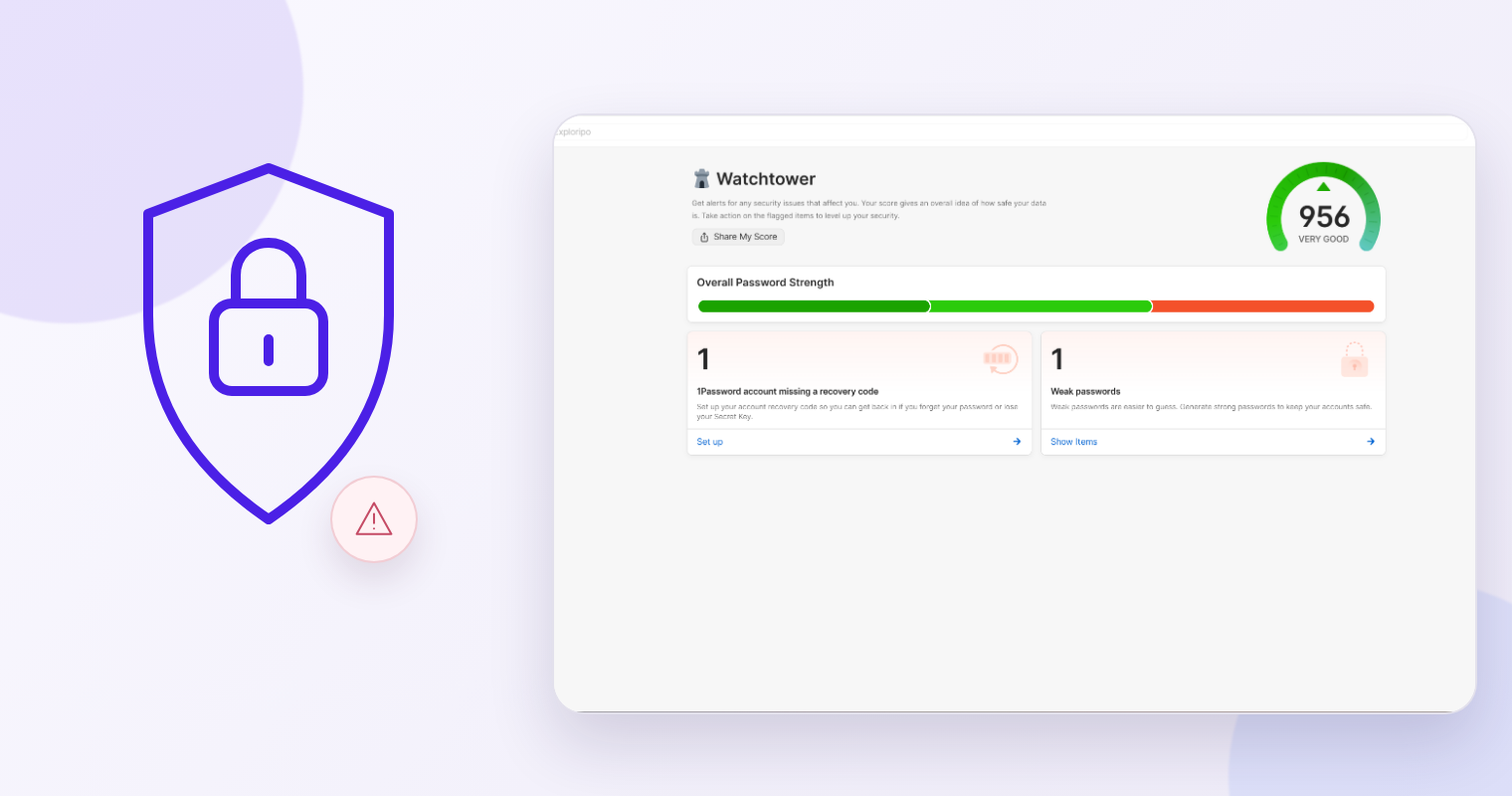
A 1Password Watchtower dashboard can show several kinds of warning, but they do not all mean the same thing. A site breach, a password known to attackers, a reused password and a weak password call for different checks. Treating every card as one generic danger makes the list harder to act on.
This Guide turns password breach monitoring into a repeatable 1Password workflow: capture a baseline, prioritize the alerts that can indicate exposure, open the affected item, change the credential at the original service, and verify what Watchtower shows afterward. For plans, pricing and the broader product verdict, read our full 1Password review.
Exploripo tested Watchtower in the 1Password web vault on August 31, 2026 with synthetic data. We confirmed the weak-password path, not a real breach. Current product behavior below was checked against 1Password’s documentation on October 4, 2026. The priority order and audit log are Exploripo methodology, not rules imposed by 1Password.
1. Capture the Watchtower baseline
Open 1Password, select the vault you want to audit, and open Watchtower. In a browser, 1Password’s current Watchtower guide also describes a report view for a selected vault. Before changing anything, record:
- the date, vault and reviewer;
- the Watchtower score or summary shown;
- the count in each visible alert category;
- account-level notices that are separate from saved-login findings;
- any item you cannot verify because its owner or service is unavailable.
A screenshot can help, but do not expose login names or account details unnecessarily. Counts plus a short action log are usually enough.
What Exploripo observed
Our fresh Individual trial showed a Watchtower score of 1000, labelled Fantastic. We then saved a separate synthetic Login with a deliberately weak password. The score fell to 956, labelled Very Good, and Watchtower added one Weak passwords alert. Opening Show Items led to the one synthetic record, where an item-level warning described the password as too easy to guess.
After we archived that test item, the score returned to 1000 and the weak-password card disappeared. This verifies that the web-vault alert reacted to that stored synthetic item. It does not prove how quickly a real breach alert appears, how a reused-password case behaves, or that 1000 means every account is safe.
2. Read the alert category before deciding what to do
Use the category name as a triage signal, then verify the underlying item. 1Password currently defines the main password-related categories this way:
| Watchtower category | What 1Password says it means | First verification |
|---|---|---|
| Compromised websites | A website reported a breach and the saved password has not been changed since that breach | Confirm the site and whether the Login is still active |
| Vulnerable passwords | A saved password was exposed in a data breach | Treat the password itself as exposed and check for reuse |
| Reused passwords | The same password is saved for more than one item | Decide whether those items truly represent separate accounts |
| Weak passwords | A password is easy to guess | Confirm the item is active, then replace it with a strong unique password |
Other Watchtower sections can flag unsecured websites, expiring items, duplicate records, available two-factor authentication or passkeys. Keep those in the audit, but do not let routine hygiene hide an exposed active credential.
As an Exploripo priority rule, handle a vulnerable password or an unchanged password on a compromised website first. Next address reuse that could spread one exposure across several accounts. Then work through weak passwords and the remaining hygiene categories. Raise the urgency further when the affected login controls primary email, password recovery, payments, a domain, publishing access or administrator privileges.
If there is evidence that someone is already using the account, stop treating the task as a normal password audit. Use the service’s account-recovery or incident-response process, secure the primary email and recovery channels, and review active sessions and account changes.
3. Open the alert and validate the affected Login
Open the category and inspect each listed item. Do not change a credential only to clear a dashboard card. First establish whether the record represents a real, active account and whether another person owns it.
For each item, answer:
- Is the website and username still correct?
- Is the account active, closed, shared or duplicated in another vault item?
- Does the Login protect a high-impact service or a recovery channel?
- Could the same or a similar password exist on another active account?
- Can the account owner complete and verify the change now?
If the record is stale, confirm the underlying service is genuinely closed before archiving the item. If a warning is a documented exception, record the reason and owner. Avoid using Ignore simply to improve the score; Exploripo saw that control on the synthetic weak-password item but did not use it.
Never paste a password into a ticket, spreadsheet, email or chat as proof of remediation. Track the affected service, alert type, owner, status and verification date—not the secret itself.
4. Change the password at the original service
Make the change on the affected website or app, not only inside the 1Password item. Editing the vault record without updating the service can leave the old password active and create a mismatch.
1Password’s current password-change guide explains how its browser extension can suggest and save a strong password on a site’s password-change form. The exact controls vary by site, so keep the service page and the matching 1Password item aligned.
- Open the official service directly and sign in through a trusted route.
- Find the service’s password or security settings.
- Generate a new, unique password and save the change.
- Confirm that 1Password saved the new value to the intended Login item.
- Test the updated login in a fresh session before closing the task.
- If the old password was reused, repeat the process for every other affected account; do not turn one replacement into a new shared password.
Also review the service’s recent sign-ins, recovery email or phone, connected applications and active sessions when those controls exist—especially for a breach-related alert. Revoke sessions or access you do not recognize. If the service cannot be reached or the account owner is unavailable, leave the item open in the audit log rather than marking it fixed.
5. Treat two-factor authentication and passkeys as separate controls
A unique replacement password resolves one credential problem. It does not automatically enable a second factor, replace weak account recovery or remove old sessions.
When Watchtower reports that a site supports two-factor authentication, follow the service’s own setup flow. 1Password’s one-time-password guide explains how supported one-time passwords can be saved and filled, but recovery codes remain sensitive credentials. Store them only in an approved location and never place them in the audit log or screenshots.
If Watchtower reports that a passkey is available, first check whether the service supports your account type and recovery needs. 1Password’s passkey guide covers saving and using passkeys. A passkey can reduce password-based risk, but migration, device access and recovery deserve their own check before you remove an existing sign-in method.
Exploripo did not hands-on test 1Password’s two-factor or passkey workflows in this review session. These are documented follow-up options, not observed results from our Watchtower test.
6. Verify the result instead of trusting the score alone
Return to Watchtower after the service change and allow the vault item to update. Confirm whether the relevant alert clears or its count changes, then compare the dashboard with your baseline.
The score is a useful summary, not the completion criterion. A task is complete only when:
- the correct active account received a unique replacement credential;
- the updated login works;
- any suspected reuse was checked across other accounts;
- relevant sessions, recovery settings and second-factor options were reviewed;
- the Watchtower item and audit log agree;
- every unresolved exception still has an owner and next action.
Our 1000 → 956 → 1000 test is an example of a clean synthetic before-and-after result, not a target score for every vault. The initial 1000 dashboard still showed a separate missing-recovery-code notice for the 1Password account. That is why a top score should not replace reading the individual cards.
7. Understand Watchtower’s privacy boundary
According to 1Password’s current Watchtower privacy documentation, most Watchtower checks happen locally. For the vulnerable-password check, 1Password hashes a password, sends only the first five characters of that hash to the Pwned Passwords service, receives possible matches, and compares the complete hash locally. It says the full password is never sent.
That design limits what leaves the device, but it does not make Watchtower omniscient. An undisclosed breach, a compromised account with a still-unique password, a malicious session or a weak recovery channel may not appear as a password alert. Keep software updated, use unique credentials, protect account recovery and review high-impact accounts even when the dashboard looks clean.
Final Watchtower audit checklist
Before closing the audit, confirm every answer is yes:
- Did you record the starting Watchtower counts and the vault reviewed?
- Did you distinguish compromised websites, vulnerable, reused and weak passwords?
- Did you prioritize active high-impact accounts?
- Did you verify that each flagged Login represents a real current account?
- Was the password changed at the original service and saved to the correct 1Password item?
- Did you test the replacement credential in a fresh session?
- Did you check for reuse instead of changing only the first item?
- Did you review two-factor authentication, passkeys, recovery settings and active sessions where relevant?
- Did you compare the final Watchtower state with the baseline?
- Does every unresolved exception have an owner, reason and next action without storing the secret?
If any answer is no, leave the item open. The goal of password breach monitoring is not a perfect-looking score. It is a verified chain from alert to account, from account to corrective action, and from corrective action to a result you can explain later.