
Exploripo Guide
How to Share a Password Securely with an Expiring One-Time Link
Share a password through an expiring link, verify recipient access, check one-view behavior where available and revoke the link when the handoff is complete.
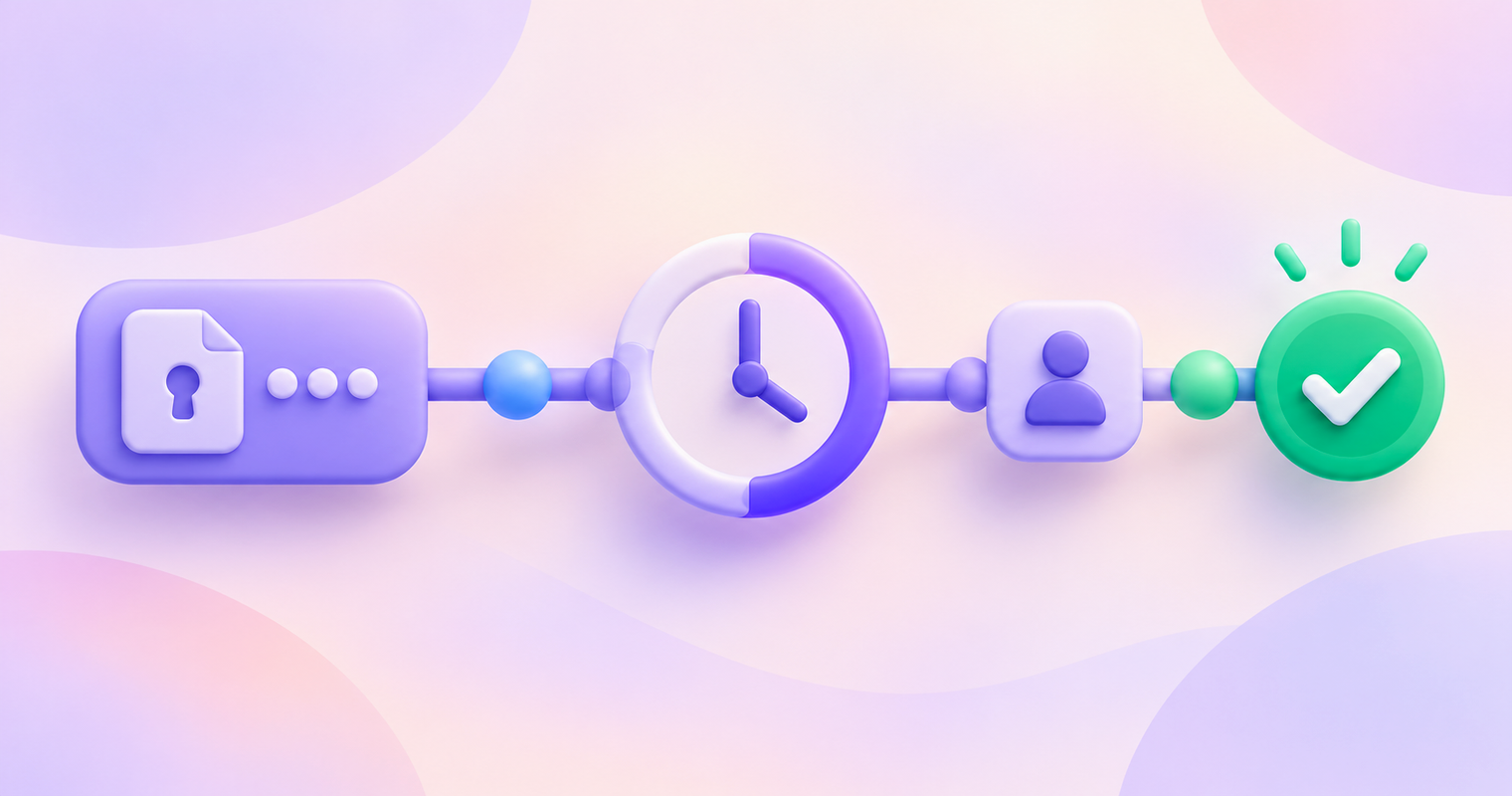
Sending a password in an ordinary email or chat message leaves a durable copy in places you may not control. A password manager’s expiring link gives you a narrower handoff: share one item, choose how long the link works, limit who can open it where supported, and close the link after the recipient has what they need.
This secure password sharing guide uses 1Password as the practical example. Exploripo tested the 1Password Individual trial on August 31, 2026 with a synthetic Login, never a real account secret. We confirmed a one-hour, one-view link, signed-out recipient access, a blocked second attempt and sender-side cleanup. We checked 1Password’s current sharing and security documentation again on October 19, 2026. The current general instructions still document expiring links, recipient restrictions, sharing history and revocation, but they do not promise a one-view control for every account. Use that option only when your current dialog or organization policy provides it.
For the broader product verdict, plans and testing limits, read our 1Password review. This Guide focuses only on transferring one saved item and ending access cleanly.
The safe sharing plan
- Confirm that sharing the password is necessary and that the recipient is trusted.
- Check the saved item and remove details the recipient does not need.
- Choose the shortest practical expiry and a named recipient where available.
- Enable one-view access only if your account currently offers it.
- Send the link through the intended channel and verify access without asking the recipient to repeat the password.
- Review sharing history, revoke any remaining link and rotate the credential if access must truly end.
An expiring link is a control, not a guarantee. During an authorized view, the recipient may be able to copy, reveal or capture the secret. Expiry limits later use of the link; it does not erase information already retained.
Before you create the link
First decide whether the other person needs the same credential. A separate user account, delegated role or shared team vault usually preserves better accountability for ongoing access. A one-item link is more suitable for a temporary handoff to a trusted person who does not need continuing membership in your password manager.
Open the saved item and confirm that it represents the correct service and current username. Review notes, custom fields and one-time-password data as well as the password itself. Share only what the recipient needs. Do not add a real password to a test record, screenshot, ticket or checklist to prove that the process works.
1Password’s current unique-link security explanation says the service creates and encrypts a copy of the item, removes password history from that copy and leaves the original item unshared. That distinction matters: changing the original after creating the link does not update the existing shared copy. If the details change, stop the old share and create a new link.
Step 1: choose the recipient and expiry
Open the item, select Share and inspect the controls shown in your current account. According to 1Password’s current item-sharing instructions, you can choose when the link expires and whether it is available to anyone with the link or only specified people.
Use the shortest expiry that still gives the recipient a realistic chance to complete the handoff. A colleague opening the link during a planned call may need only a short window. A recipient in another time zone may need longer. Do not choose a long duration merely to avoid coordinating delivery.
If you know the recipient’s email address, use the specified-people option where available. 1Password says those recipients must verify access to the email address before viewing the item. Anyone-with-the-link access is easier, but the URL itself becomes the access path. Forwarding it, pasting it into the wrong conversation or leaving it in a broadly visible workspace expands the audience.
In Exploripo’s August Individual-trial test, the dialog offered 1 hour, 1 day, 7 days, 14 days and 30 days, with 7 days selected by default. Treat those values as a dated observation, not a promise about every current account. Select from the options you actually see.
Step 2: use one-view access when it is available
If the dialog offers a control such as “Can be viewed only 1 time,” enable it for a single planned handoff. If it is absent, do not assume the share is one-time. Use specified-recipient verification, a short expiry and prompt manual revocation instead.
The availability boundary has changed in the documentation. Exploripo observed the checkbox in an Individual trial on August 31. The current general sharing article does not mention it, while the current 1Password Business policy guide still documents an organization setting that makes links expire after one view. The safe conclusion is that one-view behavior can depend on current account or policy state and should be verified in the interface before you rely on it.
Do not preview your own one-view link simply to check its appearance. That may consume the allowed view before the intended recipient opens it. For a high-impact workflow, rehearse first with a clearly synthetic item and a reserved-domain address such as test@example.invalid, then create a separate link for the real handoff.
Step 3: send the link and verify recipient access
Copy the generated link and send it only to the intended person. Use a channel you have already agreed on, and confirm the recipient through a known contact route when the request is unexpected or high impact. A polished message from an unfamiliar address is not enough identity verification.
The recipient can open a 1Password item link in a browser even without a 1Password account. If the share is restricted to specified people, the recipient must complete the email-verification step. Ask them to confirm that the expected item opened and that they can complete the intended task. Do not ask them to paste the password back into chat or send a screenshot containing the secret.
Exploripo’s synthetic recipient page disclosed that the item could be viewed once. It showed the test username, notes and tag, while the password remained masked until the recipient chose an explicit action. We did not reveal or copy that password during the test, so the Guide does not claim how a later reveal or copy interaction behaves today.
Step 4: verify one-view behavior without using a real secret
One-time enforcement is worth testing before your organization depends on it, but the test should use synthetic data. Create an item clearly named as a test, use a reserved-domain username and make sure no field contains a real credential, recovery code or personal information.
Run this small check:
- Create a short-lived, one-view link for the synthetic item.
- Open it once in a signed-out private session and record only whether the expected synthetic item appears.
- Close that session and try the same link in a new private session.
- Confirm that the item no longer opens, then check the sender’s sharing history.
- Delete any unused test link and confirm that no active link remains.
In the Exploripo test, the first signed-out access succeeded and a second fresh private-session attempt displayed “Maximum views reached.” Sharing History recorded the used link as viewed once and expired. This is a dated hands-on result for the tested link, not a guarantee about all future versions or configurations.
Step 5: revoke the link and clean up
Do not leave cleanup to memory. After the recipient confirms completion, return to the item and open its sharing history. Current 1Password instructions describe a list of active and expired links and a Delete Link action for stopping a share. Remove any link that no longer has a reason to remain active.
Our test also created an unused link during the controlled sequence. Sharing History showed it as not viewed and still active. Using Delete Link changed it to expired and removed its active controls; the consumed one-view link remained in the history as viewed once and expired. No active share link remained when testing stopped.
Revocation closes the link, not the recipient’s memory or any copy they already made. If the person should no longer be able to use the credential, change the password at the original service and review associated sessions, recovery methods and one-time-password setup. Updating the vault item alone does not change the service credential.
If you suspect that a password was weak, reused or exposed, link cleanup is only one part of the response. Use the separate 1Password Watchtower Guide to triage the warning, change the credential at the service and verify the result.
Common mistakes to avoid
- Using anyone-with-the-link for a known recipient. Choose specified people and email verification when your account provides them.
- Leaving the default expiry without thinking. Match the window to the actual handoff instead of assuming the visible default is appropriate.
- Opening a one-view link yourself. Rehearse with a separate synthetic item rather than consuming the recipient’s access.
- Assuming revocation retracts a copied password. Rotate the credential when access itself must end.
- Editing the original and expecting the shared copy to update. Delete the old link and share a new copy after the item changes.
- Using temporary links for permanent collaboration. Prefer separate accounts, roles or a shared vault for recurring access.
- Recording the secret in the audit trail. Track the service, recipient, expiry, result and cleanup status, never the password or share URL.
Concise testing checklist
Before treating the workflow as ready, confirm every answer is yes:
- Was the rehearsal performed with synthetic data only?
- Does the item contain only the fields the recipient needs?
- Is the recipient restriction stronger than anyone-with-the-link where possible?
- Is the expiry the shortest practical option?
- Is one-view access visibly enabled, rather than assumed?
- Did the intended recipient open the expected item without returning the secret?
- Did a synthetic second-access check fail when one-view was enabled?
- Does sharing history match the expected viewed and expired states?
- Were unused or completed links deleted?
- Is credential rotation planned if retained access must be removed?
Frequently asked questions
Is a one-time link the same as a self-destructing password?
No. It can stop the same link from opening again after the allowed view, but it cannot prevent an authorized recipient from copying, revealing or capturing the password during that view. Treat the recipient as someone who may retain the information.
Does the recipient need a 1Password account?
Not for a unique item-sharing link. Current 1Password documentation says the recipient can open the link in a browser. A specified-recipient share can require email verification before access.
What should I do if the one-view option is missing?
Choose the shortest practical expiry, restrict the link to the intended email address where possible, coordinate the handoff and delete the link immediately afterward. Do not describe the result as one-time access unless the interface or applicable policy explicitly says so.
Can I update a password after creating the link?
You can update the original item, but the existing shared copy will not receive the change. Delete the old link and create a new one if the recipient needs the updated details. If the old password should stop working, change it at the original service as well.
When is a shared vault better than an expiring link?
Use a shared vault or separate role-based account for ongoing access among family or team members. An expiring item link is better for a limited handoff to a trusted recipient who does not need continuing vault membership. Choose the model that preserves ownership, revocation and accountability for the relationship.