
Exploripo Guide
How to Map Pipedrive Contact Fields Before a CSV Import
Map Pipedrive contact fields before a CSV import, review duplicate rules, test a representative pilot, and verify every result before a full migration.
A Pipedrive contact import can look successful while putting a source value in the wrong field, merging a person you expected to keep separate, or skipping a row your sales team needs. The safest time to catch those problems is before the full CSV is committed.
This Guide turns Pipedrive contact import mapping into a controlled sequence: define the scope, prepare a field map, review every automatic match, choose the duplicate behavior, run a representative pilot, and inspect the result. It focuses on contact data rather than evaluating the CRM as a whole. For product, pricing, and plan context, read our full Pipedrive review.
Pipedrive’s interface and limits can change. Product facts below were checked against its Help Center on October 3, 2026. The pilot design and go/no-go rules are Exploripo methodology, not requirements imposed by Pipedrive.
1. Define what one row represents
Write down the import’s purpose before editing the file. A contact-only import may need Person and Organization fields. A pipeline migration may also need Deal fields, ownership, stage, value, and relationships. Keep that scope visible while you map.
Pipedrive does allow one spreadsheet row to contain data for a person, organization, and deal; the import can create and link those items. A mixed row is therefore not automatically invalid. The risk is accidental ambiguity: if a supposed contact import contains a deal column, you need to decide deliberately whether that deal should be created.
Preserve the untouched source export, then make a separate working copy. Record:
- the system and date of the export;
- who owns the import decision;
- which Pipedrive entities may be created or updated;
- which columns contain sensitive or consent-related data;
- how you will identify a successful pilot and a reason to stop.
Do not turn the mere presence of an email address into a marketing-consent decision. Consent, lawful basis, suppression status, and retention rules need their own approved source and destination fields.
2. Prepare the file and a field map
Pipedrive’s current spreadsheet import documentation accepts XLS, XLSX, and CSV files. It says the spreadsheet should have a header row, use one tab, contain no more than 50,000 rows, and be smaller than 50 MB. The live interface observed during Exploripo’s September test displayed a different row allowance, so treat the Help Center limit as the documented rule and confirm the current upload screen before a large migration. Splitting a large file also makes validation and recovery easier.
The current mandatory-fields guide requires a name for a Person or Organization import. Other entities have their own minimum relationships. Check those requirements before upload rather than waiting for a skip file.
Create a worksheet that makes each decision reviewable. This is an Exploripo template, not a Pipedrive screen:
| Source column | Pipedrive entity | Destination field | Treatment before import | Pilot verification |
|---|---|---|---|---|
full_name |
Person | Name | Preserve the approved display name | Open the created or merged Person |
work_email |
Person | Trim spaces; do not infer consent | Compare source and Pipedrive value | |
company |
Organization | Name | Resolve obvious naming variants | Confirm the Person relationship |
company_address |
Organization | Address | Keep enough detail for intended matching | Inspect a likely duplicate |
lead_source |
Person or another approved entity | Confirm or create the correct field | Agree the field type and allowed values | Filter the pilot by the imported value |
Add an owner and sample value to your working version if several people are making decisions. A column without a business owner, destination, or verification method is not ready to import.
3. Review every automatic mapping
Upload the working copy, then inspect each source column in Pipedrive’s mapping step. The current field-mapping documentation separates Person, Organization, Lead, Deal, Activity, Note, Product, and other item types. Automatic matching is a starting point; drag the field to the correct item type when the suggestion is missing or wrong.
What Exploripo observed
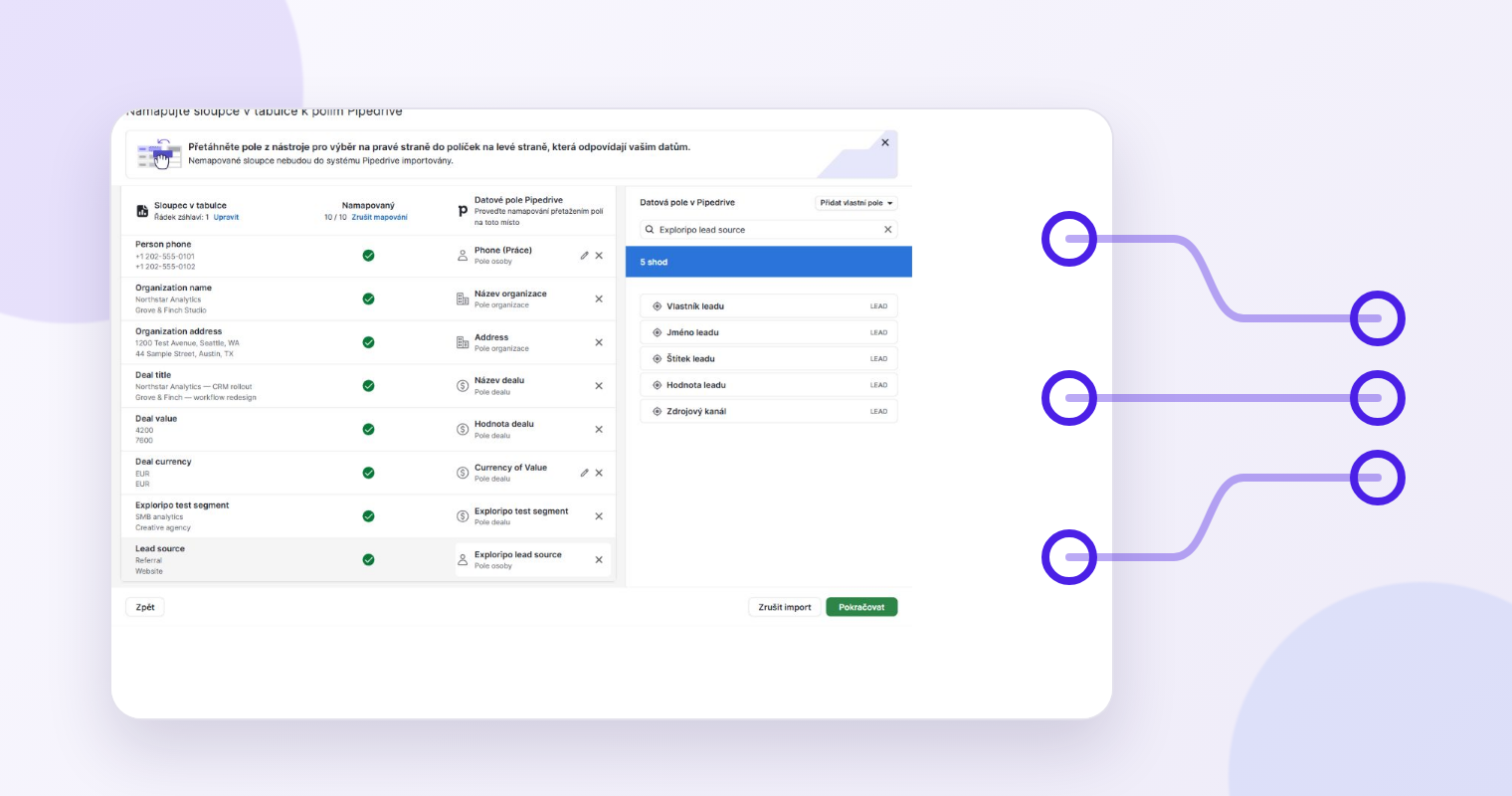
On September 25, 2026, Exploripo uploaded a small synthetic fixture containing four deals, three people, and three organizations. Pipedrive automatically mapped nine of ten columns, but it mapped Lead source to a Person label rather than the intended destination. We removed that match, created a Person text field named Exploripo lead source, created a second custom Deal text field, and then reached ten of ten mapped columns.
That observation shows why a human should review every match. It does not prove that Pipedrive will make the same suggestion for another account or file. The fixture was deliberately small, used synthetic data, and did not test a production-scale migration.
If the required destination does not exist, Pipedrive’s current import-fields documentation says a custom field can be created during mapping. Before doing so, confirm:
- the correct entity, such as Person rather than Organization;
- the correct field type, such as text, date, number, or single option;
- whether an existing field already represents the same concept;
- how the field will be filtered, reported, exported, and maintained later.
Do not create a custom field simply to make the mapping counter complete. Leave a source column unmapped if it should not enter Pipedrive, and document that decision.
4. Choose the duplicate behavior using Pipedrive’s rules
Duplicate handling is not a generic “email equals identity” rule. Pipedrive’s current duplicate-import documentation describes different identifiers by item type:
| Item | Pipedrive’s documented matching basis | Practical implication |
|---|---|---|
| Person | The recognized name plus a matching organization, phone, or email | Test name variations and shared details in the pilot |
| Organization | Organization name plus address | Standardize obvious variants without erasing meaningful locations |
| Deal | No duplicate identifier | Reimporting the same deal can create another deal |
Pipedrive also presents an import choice about merging duplicate data or creating multiple records. Read that option in the context of your file. A merge can preserve one customer history, but an incorrect match can attach values to the wrong record. Creating separate records avoids that merge but can leave cleanup work and fragmented activity history.
Build at least one known existing Person, one existing Organization, and one intentional same-name case into the pilot when those scenarios exist in the real data. For deal imports, explicitly decide how repeat uploads will be prevented because the platform does not deduplicate deals by a built-in identifier.
5. Use preview, then run a representative pilot
Pipedrive’s preview is the last check before the import is committed. Review the destination fields, item relationships, missing information, and duplicate choice. Go back if anything is unclear.
Then import the smallest subset that still represents the risks in the full file. Exploripo often starts with roughly 10–20 rows for a small migration, but that is a practical starting point, not a platform rule. Row count matters less than coverage. Include, where relevant:
- every entity type and custom field;
- blank optional values and one known invalid value;
- a new Person and Organization;
- a known duplicate and a same-name non-duplicate;
- non-ASCII characters, dates, numbers, and option values;
- the relationships that must survive the import.
After the pilot, open the records in Pipedrive rather than relying only on the success banner. Compare them with the frozen source file. Confirm field values, owners, labels, links between Person and Organization, any Deal relationship, and the expected duplicate outcome. Test a filter or report that depends on each newly created custom field.
In Exploripo’s synthetic test, the final result reported 11 added items, three merged items, zero updated items, and zero skipped rows. Those counts were correct for that fixture only. Your pass condition must be based on your expected records and relationships, not on matching our numbers.
6. Inspect history, skipped rows, and the recovery window
Open Import History after every pilot and batch. Pipedrive reports counts for added, updated, merged, and skipped items. Save the source file, mapping notes, result counts, reviewer, and decision together so that the next batch is traceable.
If rows are skipped, use the skip file instead of guessing. Pipedrive’s current skip-file guidance says it retains the attempted data and gives a reason for each skipped row. Documented causes include missing mandatory fields, invalid currencies, and invalid system IDs. Correct the cause in a new working file and rerun only the affected rows after checking that the correction will not create duplicates.
The current Help Center also says a global admin can revert an import from Import History within 48 hours, with support recommended when the option is unavailable. Treat that as a limited recovery control, not as permission to skip the pilot. A revert has a role requirement and a deadline, and later team activity may make the consequences harder to reason about.
Final pre-import checklist
Proceed with the full import only when every answer is yes:
- Is the untouched source export preserved separately?
- Does every imported column have an approved entity, field, type, and owner?
- Did a human review every automatic mapping?
- Are Person, Organization, and Deal duplicate rules understood for this file?
- Does the preview show the intended fields and relationships?
- Does the pilot cover real edge cases, not just clean rows?
- Do the created and merged records match the frozen source and expected counts?
- Were skipped rows explained and corrected without reimporting successful rows?
- Is the full batch small enough to review and recover within your operating window?
If any answer is no, stop and fix the map or pilot. A slower preflight is cheaper than discovering after the full migration that the CRM is consistent in exactly the wrong way.