
Exploripo Guide
How to Export a Novlr Manuscript Without Losing Structure
Choose DOCX, PDF, ODT, RTF or EPUB for the next step, then verify structure, text, notes and format-specific details before the file leaves Novlr.
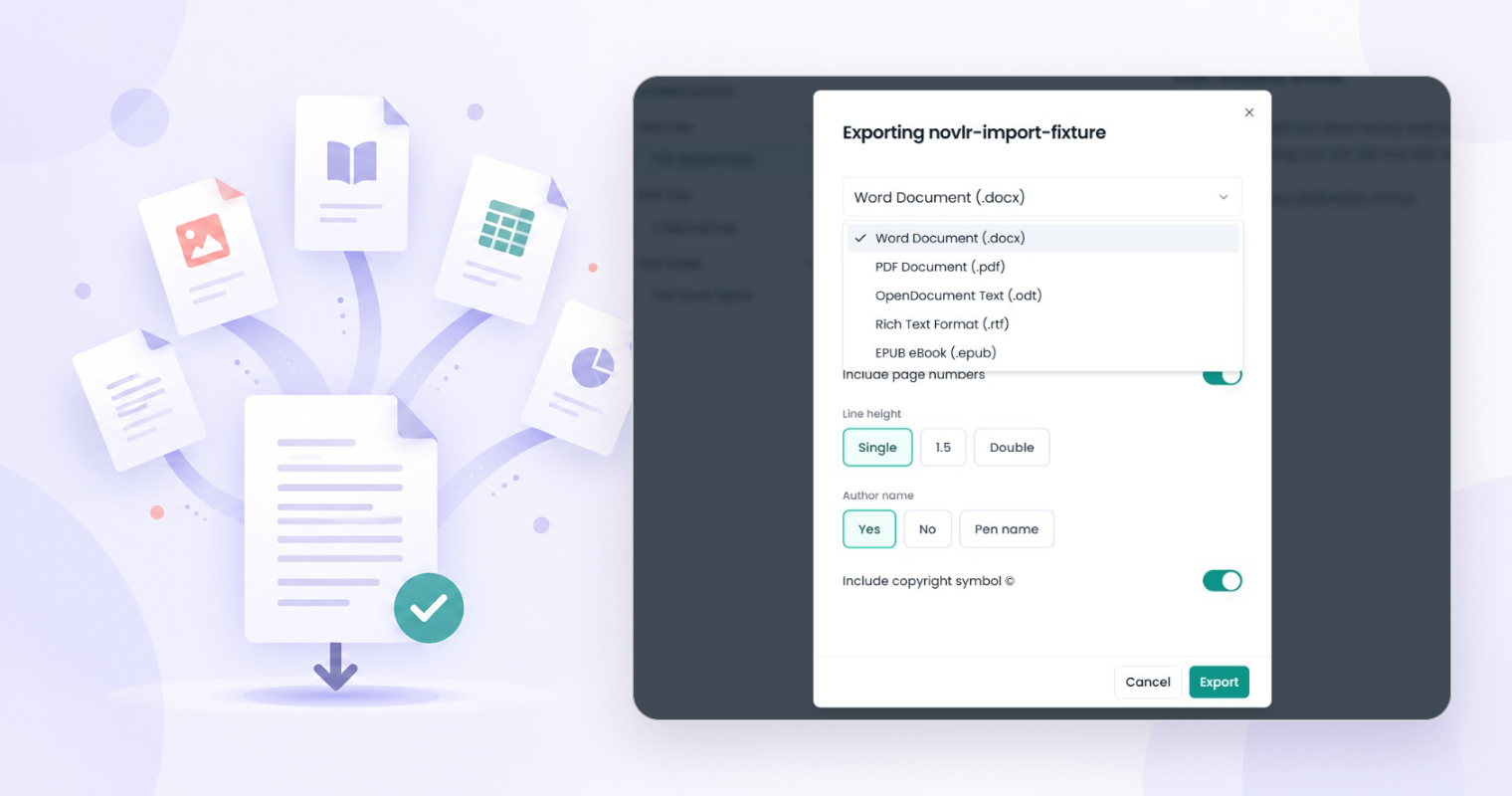
Novlr manuscript export formats are useful only if the file that leaves the writing workspace still contains the structure and text you meant to send. The fastest way to choose is to start with the next recipient: an editor usually needs an editable document, a proofreader may need a fixed reading copy, and an ebook workflow needs a reflowable file that is checked outside Novlr.
In a September 22, 2026 Free-account test, Exploripo downloaded two small invented projects as DOCX, PDF, ODT, RTF and EPUB. All five formats retained our control text and section names, but the test also exposed boundaries around notes, page numbers and cover handling. The safe workflow is therefore: choose for the destination, export, open the actual file and compare it with the source before handoff.
Evidence boundary: Exploripo tested ten base exports from two small invented projects and one additional notes-inclusive DOCX. We did not test a full book, retailer upload, print-on-demand service, complex typography, tables, footnotes, images, accessibility metadata or every downstream editor and reader. The observations below apply to that dated test; the broader checklist is Exploripo’s editorial method.
Choose the Format for the Next Step
Do not pick a format because it looks familiar. Ask what the recipient must do with the file, then follow any specification they provide. If an agent, editor or publishing service names an accepted format, that requirement takes priority over a general rule.
| Novlr format | Best starting use | Check before handoff |
|---|---|---|
| DOCX | Editing, comments and revision in a word processor | Heading levels, italics, scene breaks and unintended notes |
| A stable reading or proof copy | Page count, blank pages, page numbers and chapter starts | |
| ODT | Editable work in OpenDocument-compatible software | Headings, emphasis and compatibility in the recipient’s app |
| RTF | A broadly readable editable fallback | Reduced styling, hierarchy and special characters |
| EPUB | A reflowable ebook check or later ebook workflow | Navigation, chapter order, emphasis and cover behavior |
This table is a decision aid, not a compatibility guarantee. Exploripo’s samples were deliberately small. A poetry collection, illustrated book, academic manuscript or layout-heavy project needs additional format-specific testing.
What Exploripo Actually Tested
The first project was an 803-word drafted story with three parent sections, one nested subsection and distinctive control phrases. The second was a 188-word DOCX import that Novlr split into eight sections: Front Matter, an Untitled section and three parent/child chapter pairs.
The tested Free account showed exactly five export choices: Word Document (.docx), PDF (.pdf), OpenDocument Text (.odt), Rich Text Format (.rtf) and EPUB eBook (.epub). We downloaded every format for both projects.
- All five formats retained the expected section names and tested phrases in both projects.
- The imported project’s DOCX retained its eight headings and the tested italic sentence.
- The imported-project PDF contained seven pages; the drafted-project PDF contained six.
- A rendered page from the imported-project PDF showed readable hierarchy, dialogue, italics and page numbering without visible clipping.
- The EPUB export screen disabled page numbers and said it would use the project cover. Our fixture had no cover, so we did not test the rendered-cover result.
These results establish a practical workflow, not universal fidelity. Marker presence proves that tested content survived; it does not prove that every style is pixel-perfect.
1. Prepare the Structure Before Export
An export can preserve a messy source accurately. Before opening Novlr’s export dialog, review the project tree and the beginning and end of every section.
- Confirm the project title and final section order.
- Use real parent and nested sections instead of simulating hierarchy with blank lines or repeated spaces.
- Standardize scene-break markers.
- Remove placeholders, duplicate front matter and private notes that do not belong in the handoff.
- Choose two or three distinctive search markers: an unusual name, a date and one italicized phrase work well.
- Record the current word count and the final sentence of the manuscript.
The current official Novlr export guide says exported projects preserve heading hierarchy where the chosen format supports it. “Where supported” matters: confirm the result in the destination application rather than assuming every format represents structure in the same way.
2. Export From Novlr
Novlr currently documents two routes. From the projects table, open the three-dot menu on the project and select Export. From inside a project, open the three-dot menu in the header and select Export. Then choose the format and the options shown for it.
Create a test file before the final handoff. Use a name that distinguishes the working source from the exported copy, for example:
lighthouse-ledger_editorial-review_2026-10-04_v3.docx
Include the title, purpose, date and version. Do not call every file “final”: after one late correction, that label stops identifying which version was actually sent.
If the dialog exposes format-specific controls, change only what the destination needs. In the tested UI, page-number behavior differed for EPUB. A control that makes sense for a PDF may be unavailable or irrelevant in a reflowable ebook.
3. Open and Validate the Real File
A success message proves that a download completed, not that the file is ready. Open the exported file in the application or reader most similar to the recipient’s environment.
| Check | Fast validation method | Stop condition |
|---|---|---|
| Completeness | Compare section count, first sentence and final sentence | A section or latest revision is missing |
| Hierarchy | Inspect the first, middle and final chapter headings | A child section is flat, duplicated or reordered |
| Text fidelity | Search for the saved name, date and distinctive phrase | A marker is absent or corrupted |
| Emphasis | Check a known italic or bold passage | Meaningful emphasis was lost |
| Layout | Scan chapter starts, page numbers and blank pages | Text clips, headings orphan or pages appear unexpectedly |
| Navigation | Use the reader’s chapter/navigation panel where available | Order or links do not match the source |
For DOCX, ODT and RTF, make one harmless test edit in a copy to confirm that the recipient’s editor can work with it. For PDF, inspect at normal reading size and zoom into a page containing italics or punctuation. For EPUB, check chapter order and emphasis in more than one reading environment when publication quality matters. Exploripo did not perform a multi-device EPUB test, so this last step is methodology rather than a tested Novlr result.
4. Check Notes, Page Numbers and Cover Behavior
Do not assume that every type of note follows the manuscript into an export. In Exploripo’s additional all-in-one DOCX test, enabling Include notes added two general notebook notes. It did not add the three planning-grid notes or the editor comment we searched for. The dialog also showed an Individual (zip) option, but we did not download that variant.
That result is narrow but important: if a handoff depends on notes or comments, open the output and search for one exact marker from each note type. Do not tell a collaborator that annotations are included until the exported file proves it.
Apply the same rule to page numbers and covers. Our EPUB dialog disabled page numbers and described the cover as coming from the project. Because the tested project had no cover, we cannot claim how a finished cover would render. Add a real cover only when appropriate, export a test and inspect the result in the intended reader.
5. Keep a Versioned Handoff Record
For an editor, agent, formatter or publication upload, record:
- the Novlr project and manuscript version;
- the export date and filename;
- the selected format and relevant options;
- the recipient’s specification;
- which markers and sections you checked;
- any known limitation, such as notes intentionally excluded.
Keep the validated export separate from the live working draft. If you revise Novlr after creating the file, either regenerate and recheck it or make clear that the existing export represents an earlier version.
For Exploripo’s broader evaluation of the writing workspace, read the Novlr review. To compare other reviewed tools for drafting, planning and editing, browse Writing & Self-Publishing. This Guide does not repeat the review’s pricing or buying verdict.
Final Novlr Export Checklist
Before sending or uploading the file, confirm that:
- the recipient’s required format is known;
- the project tree and section order are final;
- private notes and placeholders are removed or intentionally included;
- the exported filename identifies the purpose, date and version;
- the real file opens in an appropriate application or reader;
- the first, middle and final sections are present and correctly ordered;
- saved names, dates and distinctive phrases are searchable;
- one known italic or bold passage still has the intended emphasis;
- page numbers, blank pages and chapter starts are acceptable for fixed-layout output;
- ebook navigation and cover behavior were checked when relevant;
- included notes and excluded annotations match the handoff plan;
- the final sentence and latest revision match the Novlr source.
The best export is not the file with the most formatting. It is the file that matches the next step, preserves the necessary structure and has been opened and verified before it leaves your control.